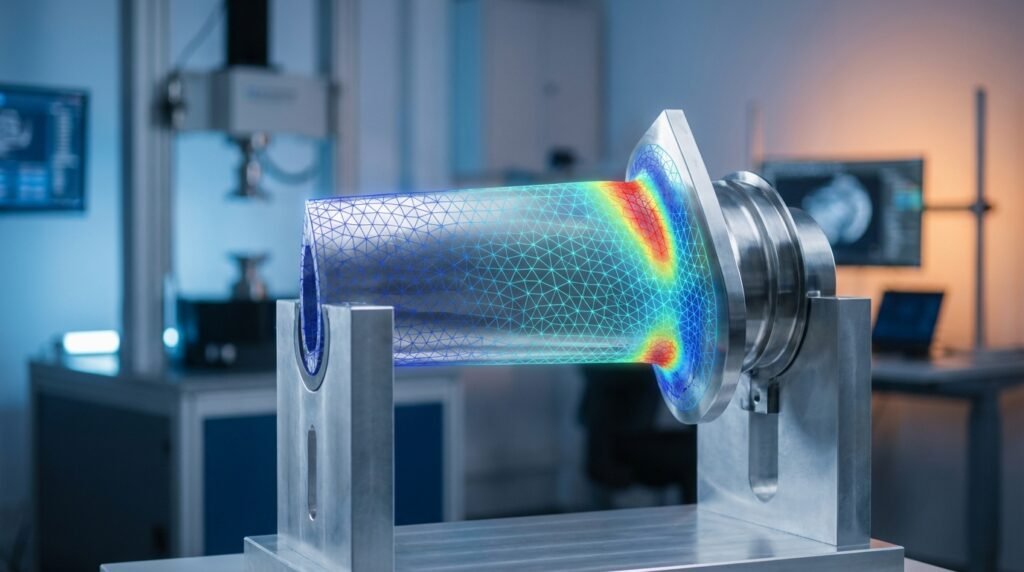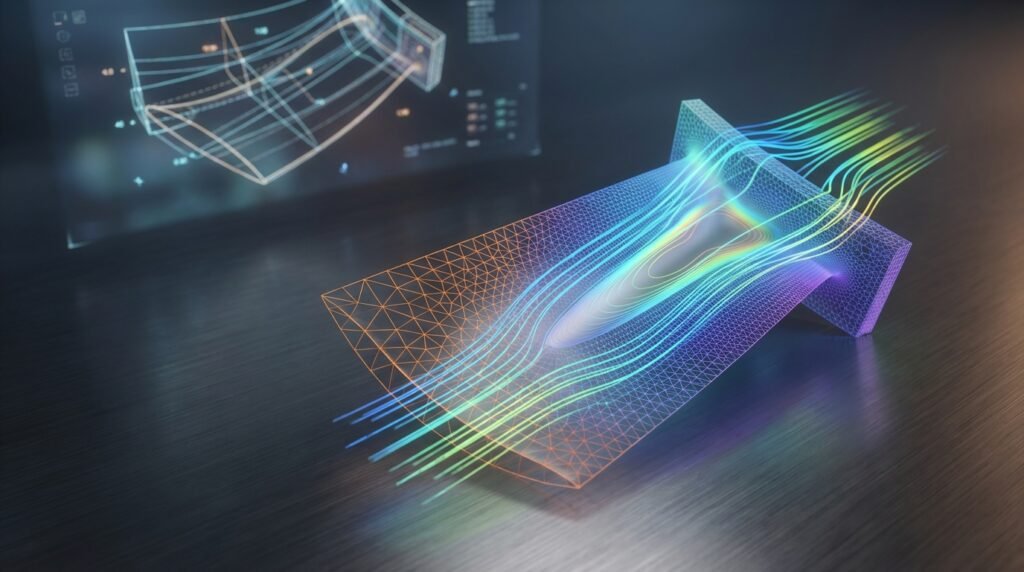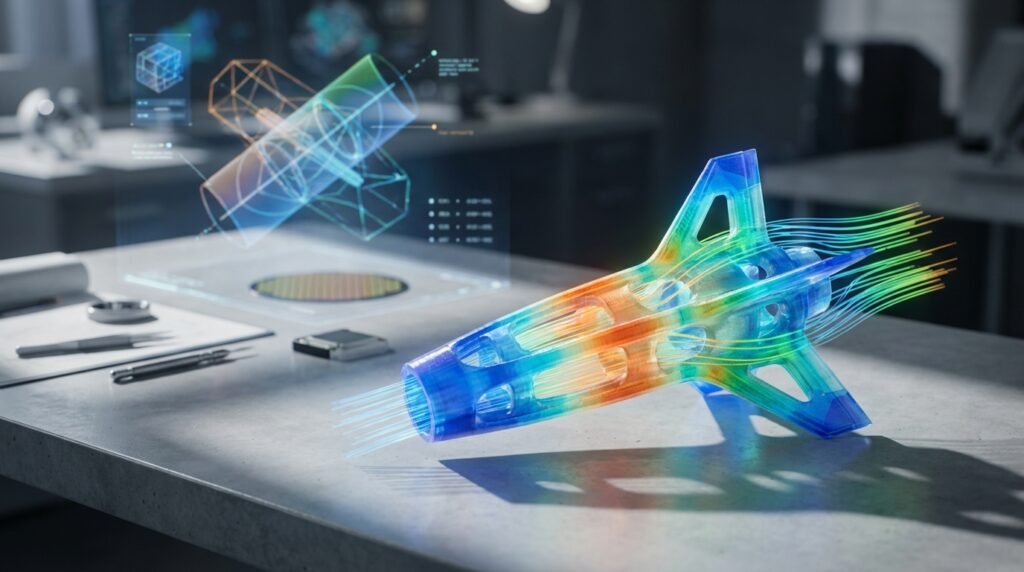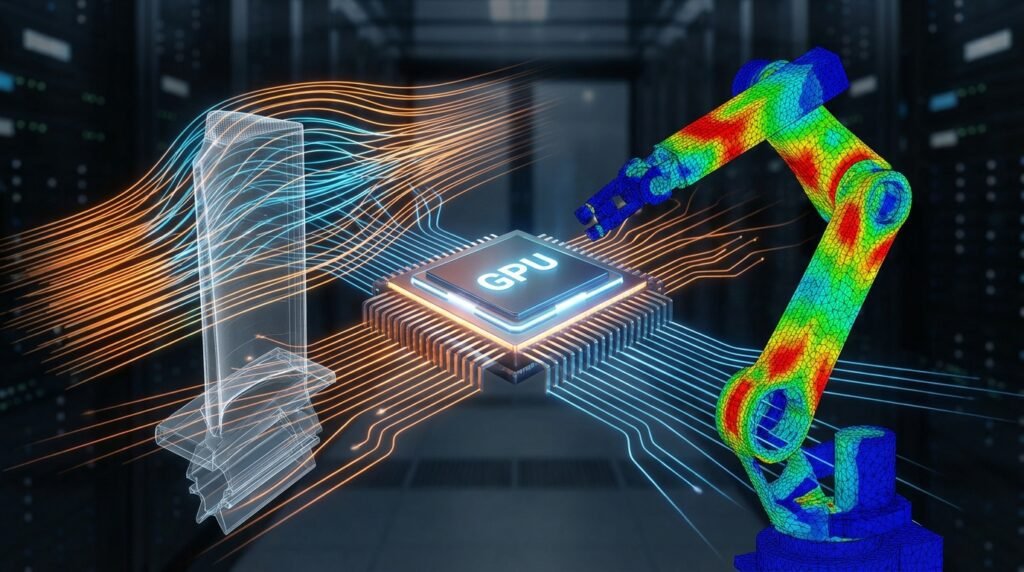
In the world of modern engineering, simulation isn’t just a tool; it’s a critical component of design, analysis, and validation. From predicting fluid flow in complex systems to evaluating structural integrity under extreme loads, engineers rely heavily on computational methods. However, traditional CPU-based simulations can be incredibly time-consuming, bottlenecking innovation and project timelines. Enter GPU-accelerated simulation: a game-changer that harnesses the immense parallel processing power of Graphics Processing Units (GPUs) to drastically speed up your analysis workflows.

Image courtesy of Wikimedia Commons.
This article will demystify GPU acceleration for engineering simulations, providing a practical, engineer-to-engineer guide on how you can leverage this technology to gain a competitive edge. We’ll cover core concepts, real-world applications, essential hardware and software considerations, and actionable steps to integrate GPU power into your CAD-CAE workflows.
Understanding GPU Acceleration for Engineering Simulations
At its heart, GPU acceleration is about parallel processing. Unlike a Central Processing Unit (CPU) with a few powerful cores optimized for sequential tasks, a GPU boasts thousands of smaller, highly efficient cores designed to execute many calculations simultaneously. This architecture is perfectly suited for the repetitive, matrix-heavy computations common in many engineering simulation algorithms.
How GPUs Supercharge Solvers
Many simulation algorithms, particularly those found in Finite Element Analysis (FEA) and Computational Fluid Dynamics (CFD), involve solving large systems of linear equations or performing iterative calculations across vast datasets. These operations are inherently parallelizable. For example:
- Matrix Multiplication: Core to implicit solvers.
- Fast Fourier Transforms (FFTs): Used in signal processing and some fluid dynamics.
- Particle-based methods: Each particle’s interaction can be computed independently for a given time step.
By offloading these computationally intensive tasks from the CPU to the GPU, engineers can achieve orders of magnitude faster solution times, allowing for more design iterations, larger models, and deeper insights.
Key Benefits of GPU-Accelerated Simulation
Adopting GPU acceleration offers a multitude of advantages that directly impact project efficiency and engineering capabilities.
1. Drastically Reduced Simulation Times
This is arguably the biggest selling point. What used to take days or even weeks on a CPU can often be completed in hours or minutes on a GPU. This speedup is crucial for meeting tight project deadlines and accelerating research and development cycles.
2. Enables Larger and More Complex Models
With faster computation, engineers are no longer constrained by the clock. You can now simulate larger assemblies, finer meshes, and more intricate physics without prohibitive run times. This leads to higher fidelity results and a more accurate representation of real-world phenomena, critical in fields like structural integrity assessment or FFS Level 3.
3. Accelerated Design Iteration and Optimization
Imagine being able to run multiple design variations or parametric studies in the time it once took for a single run. GPU acceleration makes this a reality, allowing engineers to explore a broader design space, optimize performance, and identify potential issues much earlier in the design process.
4. Cost-Effectiveness and Resource Optimization
While high-end GPUs represent an investment, their performance-per-dollar can far exceed that of equivalent CPU-based systems for parallelizable workloads. This can lead to lower overall computing costs and more efficient utilization of computing resources, whether on-premise workstations or cloud HPC clusters.
Applications Across Engineering Disciplines
GPU acceleration is not limited to a single field; its versatility makes it invaluable across various engineering domains.
FEA (Finite Element Analysis)
- Structural Engineering: Rapid analysis of large civil structures, bridges, and infrastructure components.
- Mechanical Design: Faster stress analysis, fatigue prediction, and deformation studies for components in automotive, aerospace, and general machinery.
- Crash & Impact Simulation (Explicit Dynamics): Tools like LS-DYNA heavily leverage GPUs to simulate highly nonlinear, transient events with much greater speed, crucial for vehicle safety design.
CFD (Computational Fluid Dynamics)
- Aerospace: High-fidelity aerodynamic simulations of aircraft and rocket components, optimizing lift, drag, and stability.
- Oil & Gas: Faster simulations of fluid flow in pipelines, reservoir modeling, and offshore riser analysis, enabling better design and operational decisions.
- Biomechanics: Analyzing blood flow through arteries or fluid dynamics around medical implants with unprecedented speed and detail.
Other Key Areas
- Electromagnetics: High-frequency simulations for antenna design, radar systems, and electromagnetic compatibility (EMC).
- Molecular Dynamics: Simulating material properties at the atomic level, relevant for advanced materials research.
- Optimization & Probabilistic Analysis: Running thousands of simulations for design optimization or Monte Carlo analyses becomes feasible.
Hardware Considerations for GPU Acceleration
Choosing the right hardware is crucial for maximizing the benefits of GPU acceleration. It’s not just about getting ‘a’ GPU; it’s about getting the right GPU for your specific simulation needs.
GPU Architectures: NVIDIA CUDA vs. AMD ROCm
- NVIDIA CUDA: The dominant platform for GPU computing, widely supported by commercial simulation software. CUDA-enabled GPUs (e.g., NVIDIA A100, H100, RTX series) are often the go-to choice due to mature software ecosystems and extensive developer support.
- AMD ROCm: AMD’s open-source platform, gaining traction, particularly in HPC environments and for researchers preferring open standards. Support from commercial software is growing but generally less pervasive than CUDA.
Key Specifications to Look For
When selecting a GPU, prioritize these factors:
- VRAM (Video RAM): The amount of memory directly accessible by the GPU. Large, complex models or simulations with many degrees of freedom will require significant VRAM (e.g., 24GB, 48GB, or even 80GB+). Insufficient VRAM can severely bottleneck performance or prevent simulations from running altogether.
- CUDA/Stream Cores: A higher core count generally translates to more parallel processing power.
- Tensor Cores: Specialized cores in NVIDIA GPUs that accelerate AI/ML operations, increasingly relevant as AI integrates with simulation (e.g., surrogate models, reduced-order modeling).
- Interconnect (NVLink/Infinity Fabric): For multi-GPU setups, high-speed interconnects like NVIDIA’s NVLink are vital for efficient data transfer between GPUs, preventing bottlenecks and enabling true scalability.
- Cooling: GPUs generate significant heat. Ensure adequate cooling in your workstation or server environment.
Workstation vs. HPC/Cloud Environments
For most individual engineers, a high-end workstation with one or two powerful GPUs (like an NVIDIA RTX 4090 or A6000) can provide substantial acceleration. For larger, more complex, or multi-physics problems, High-Performance Computing (HPC) clusters or cloud-based GPU instances (e.g., AWS EC2 P3/P4, Azure ND series) offer scalable solutions with multiple GPUs and vast resources.
The Software Ecosystem: Tools and Libraries
The effectiveness of GPU acceleration hinges on software support. Fortunately, many leading engineering tools now integrate GPU capabilities.
Commercial Simulation Software with GPU Support
- ANSYS:
- ANSYS Fluent & CFX: Offers significant GPU acceleration for CFD solvers, especially for density-based solvers and LES/DES models.
- ANSYS Mechanical: Uses GPUs to accelerate direct and iterative solvers for FEA, reducing solution times for static, transient, and explicit dynamics.
- Abaqus (Dassault Systèmes): Features GPU acceleration for its explicit dynamics solver (Abaqus/Explicit) and some implicit solver operations.
- OpenFOAM: While not natively GPU-accelerated across all solvers, specialized builds, plugins, and community efforts (e.g., using NVIDIA’s GPU-Direct technology or custom CUDA implementations for specific solvers) can leverage GPUs.
- LS-DYNA: Renowned for its explicit dynamics capabilities, LS-DYNA has been an early adopter and strong proponent of GPU acceleration for crashworthiness, impact, and blast simulations.
- COMSOL Multiphysics: Can use GPUs for speeding up certain matrix operations and solving large systems of equations.
Programming Languages and Libraries
For custom solvers, pre/post-processing, or integrating simulation into broader automation workflows, Python and MATLAB are key.
- Python:
- NumPy & SciPy: Can be accelerated using libraries like CuPy, which provides a NumPy-compatible API that runs on CUDA-enabled GPUs.
- PyTorch & TensorFlow: Primarily deep learning frameworks, but their GPU acceleration capabilities are excellent for general tensor operations, which can be adapted for some numerical methods or surrogate modeling in simulation.
- Numba: A JIT compiler that can compile Python code to run on GPUs with minimal code changes.
- MATLAB: The Parallel Computing Toolbox offers functions that automatically leverage GPUs for many built-in operations (e.g., `gpuArray` for moving data to the GPU, GPU-enabled FFTs, linear algebra).
CAD-CAE Workflow Integration
Tools like CATIA (for design) and MSC Patran/Nastran (for analysis) form complex CAD-CAE chains. While the CAD stage itself typically isn’t GPU-accelerated, the subsequent CAE solvers certainly benefit. The challenge often lies in efficient data transfer and ensuring your simulation software can seamlessly integrate GPU-accelerated solvers into your established workflows.
Practical Workflow for GPU-Accelerated Simulation
Integrating GPU acceleration into your simulation pipeline requires a thoughtful approach, from model setup to post-processing.
1. Model Preparation & Meshing
- Geometry Simplification: Even with GPU power, clean geometry is vital. Remove small features irrelevant to the analysis.
- Meshing Strategy: While meshing itself is often CPU-bound, a well-structured mesh is crucial for solver performance. Consider if your mesher can produce GPU-optimized mesh types (e.g., hexahedral-dominant meshes often perform better than purely tetrahedral on GPUs due to memory access patterns).
2. Solver Configuration & Execution
- Enable GPU Acceleration: This is usually a toggle or a specific solver command in your simulation software. Consult your software’s documentation (e.g., ANSYS Fluent’s solver settings for GPU utilization, Abaqus explicit command line arguments).
- Allocate Resources: Specify which GPUs to use if you have multiple. Monitor VRAM usage to avoid exceeding capacity, which can lead to crashes or severe performance degradation.
- Solver Parameters: Some solvers have GPU-specific parameters or recommendations. For instance, increasing the number of GPU threads or block sizes might be an option.
- Monitoring: Use tools like
nvidia-smi(for NVIDIA GPUs) to monitor GPU utilization, memory usage, and temperature during a simulation run. This helps identify bottlenecks or ensure the GPU is being actively used.
3. Post-Processing and Visualization
Post-processing large datasets from high-fidelity GPU simulations can also be demanding. Ensure your post-processor (e.g., ANSYS EnSight, HyperView, Paraview) can efficiently handle and visualize these large result files. Modern post-processors often leverage OpenGL for visualization, which can also benefit from powerful GPUs.
Practical Workflow Checklist for GPU Acceleration
| Step | Description | Notes | |
|---|---|---|---|
| 1. Software Support Check | Confirm your simulation software version supports GPU acceleration for your specific solver/module. | Check release notes and documentation. | |
| 2. Driver & Library Update | Ensure GPU drivers (e.g., NVIDIA CUDA Toolkit, AMD ROCm) are up-to-date and compatible. | Mismatch often causes issues. | |
| 3. Model Size vs. VRAM | Estimate VRAM requirements for your model; ensure your GPU has sufficient memory. | Large models require more VRAM. | |
| 4. Solver Configuration | Explicitly enable GPU acceleration in solver settings/commands. | Often a checkbox or command-line flag. | |
| 5. Monitoring | Use GPU monitoring tools (e.g., nvidia-smi) to verify GPU utilization. |
Low utilization might indicate a CPU bottleneck or non-GPU-accelerated solver part. | |
| 6. Initial Small Run | Test a small, representative model with GPU acceleration before committing to a full-scale run. | Confirm functionality and basic speedup. |
For more detailed guidance on optimizing your simulation workflows or developing custom GPU-accelerated scripts, consider exploring the online consultancy services offered by EngineeringDownloads.com.
Verification & Sanity Checks in GPU-Accelerated Simulations
The fundamental principles of verification and validation remain paramount, regardless of the hardware. Faster results don’t mean less scrutiny.
1. Mesh Independence Studies
Confirm that your results are independent of mesh density. While GPUs allow for finer meshes, ensure the chosen mesh resolution provides accurate results without excessive computational cost.
2. Boundary Condition Review
Double-check all applied loads, constraints, and boundary conditions. Errors here are independent of solver speed and will lead to incorrect results.
3. Convergence Criteria
Ensure that your iterative solvers are converging appropriately. Monitor residuals and solution variables to confirm stability and accuracy. Don’t compromise convergence for speed.
4. Comparison & Validation
Whenever possible, validate your GPU-accelerated simulation results against:
- Analytical solutions: For simplified cases.
- Experimental data: The gold standard for real-world validation.
- Previous CPU-based runs: Compare results for consistency.
- Literature: Reference published results for similar problems.
5. Sensitivity Checks
Perform sensitivity analyses on key input parameters. This helps understand the robustness of your design and the influence of different variables, a task greatly facilitated by faster GPU-powered simulations.
Common Mistakes and Troubleshooting Tips
While powerful, GPU-accelerated simulation can present its own set of challenges.
1. Insufficient VRAM
Problem: Simulation crashes or runs extremely slowly (‘thrashing’) due to lack of GPU memory.
Solution: Simplify your model, coarsen the mesh where appropriate, or invest in a GPU with more VRAM. Some software allows ‘out-of-core’ computing but at a performance penalty.
2. Driver & Software Incompatibility
Problem: GPU acceleration options are missing, or the solver fails to initialize the GPU.
Solution: Ensure your GPU drivers (e.g., CUDA Toolkit version) are compatible with your simulation software’s requirements. Update drivers regularly from the manufacturer’s website.
3. Algorithm Not Optimized for GPU
Problem: No significant speedup, or even slowdown, despite enabling GPU acceleration.
Solution: Not all solver algorithms are equally parallelizable. Some parts of a simulation might remain CPU-bound. Verify with your software vendor if the specific solver/physics you’re using benefits substantially from GPU acceleration. A low GPU utilization percentage via monitoring tools is a strong indicator.
4. Data Transfer Bottlenecks
Problem: GPU utilization is low, but the CPU is busy, indicating data transfer overhead.
Solution: Optimize data movement between CPU and GPU. For multi-GPU systems, ensure high-speed interconnects like NVLink are active and utilized by the software.
5. Misconfigured Software/License
Problem: GPU options are greyed out or give license errors.
Solution: Confirm your software license includes GPU acceleration features. Some advanced GPU capabilities may require specific license tiers.
The Future of GPU Simulation
The trajectory of GPU acceleration in engineering simulation is exciting, promising even more transformative changes.
- AI/ML Integration: GPUs are the backbone of AI. We’ll see deeper integration of machine learning for surrogate modeling, real-time prediction, and intelligent solver steering, blurring the lines between pure simulation and AI-driven analysis.
- Real-time Simulation & Digital Twins: Faster GPU solvers are paving the way for near real-time simulation, crucial for digital twin applications where a virtual model mirrors a physical asset’s behavior dynamically.
- Quantum Computing & Hybrid Approaches: While nascent, future computing paradigms might combine GPU acceleration with quantum computing for highly specialized, ultra-complex problems.
- Open-Source Growth: Expect continued growth in open-source GPU-accelerated libraries and solvers, democratizing access to high-performance computing.
Embracing GPU-accelerated simulation is no longer a luxury but a strategic imperative for engineers seeking to push the boundaries of design, analysis, and innovation.
Further Reading
For in-depth technical specifications and programming guides on NVIDIA GPUs, refer to the NVIDIA CUDA Toolkit Documentation.