FEA AUTOMATION

Your CAE software.
One AI FEA agent.

Bring the simulation tools you already use. We build finite element analysis automation around your software, scripts and engineering checks, from CAD and meshing to solver runs and reporting.

Our team has used the FEA Agent to develop and validate simulations based on 100+ published references.

Start with your software stack.

Use the stages you need. Pick an example to see how the tools can change.

  1. GeometryYour CAD or model
  2. MeshingYour mesher
  3. AnalysisYour solver
  4. ReviewYour checks
See example workflows
AbaqusAnsysCOMSOL MultiphysicsAltair HyperMeshCalculiXGmshOpenSeesCadQuery
On this page

Why use an AI FEA agent?

Every design revision or research run creates work around the solve. Someone rebuilds the inputs, checks which jobs failed, extracts the same outputs and records what changed. An FEA agent can turn those recurring steps into a workflow your team can repeat and inspect.

Fewer manual handoffs
Pass geometry, mesh groups and solver inputs through a defined sequence instead of rebuilding them for every variant.
More repeatable studies
Give each run a recorded input set, solver log and result table so a colleague can reproduce the comparison.
Clearer engineering reviews
Bring warnings, output differences and acceptance checks to the reviewer alongside the results.
See how we evaluate a pilot

Our FEA validation record

100+ published references
Our team used the FEA Agent to develop models and check simulation results against published research and worked examples across workstation and HPC projects.
API 579 in Abaqus and Ansys
Our published API 579-1/ASME FFS-1 Abaqus collection spans Parts 3 through 14, with 18 worked examples and 14 related studies. For a cross-solver example, see the Level 3 fitness-for-service models of the corroded conical transition from API 579 Example 4.7. Abaqus portfolio · Example 4.7 in Abaqus · Example 4.7 in Ansys
Within 0.6%
Agreement with DNV Table 8-2 for critical buckling displacement across six mesh and element-type cases. See the benchmark
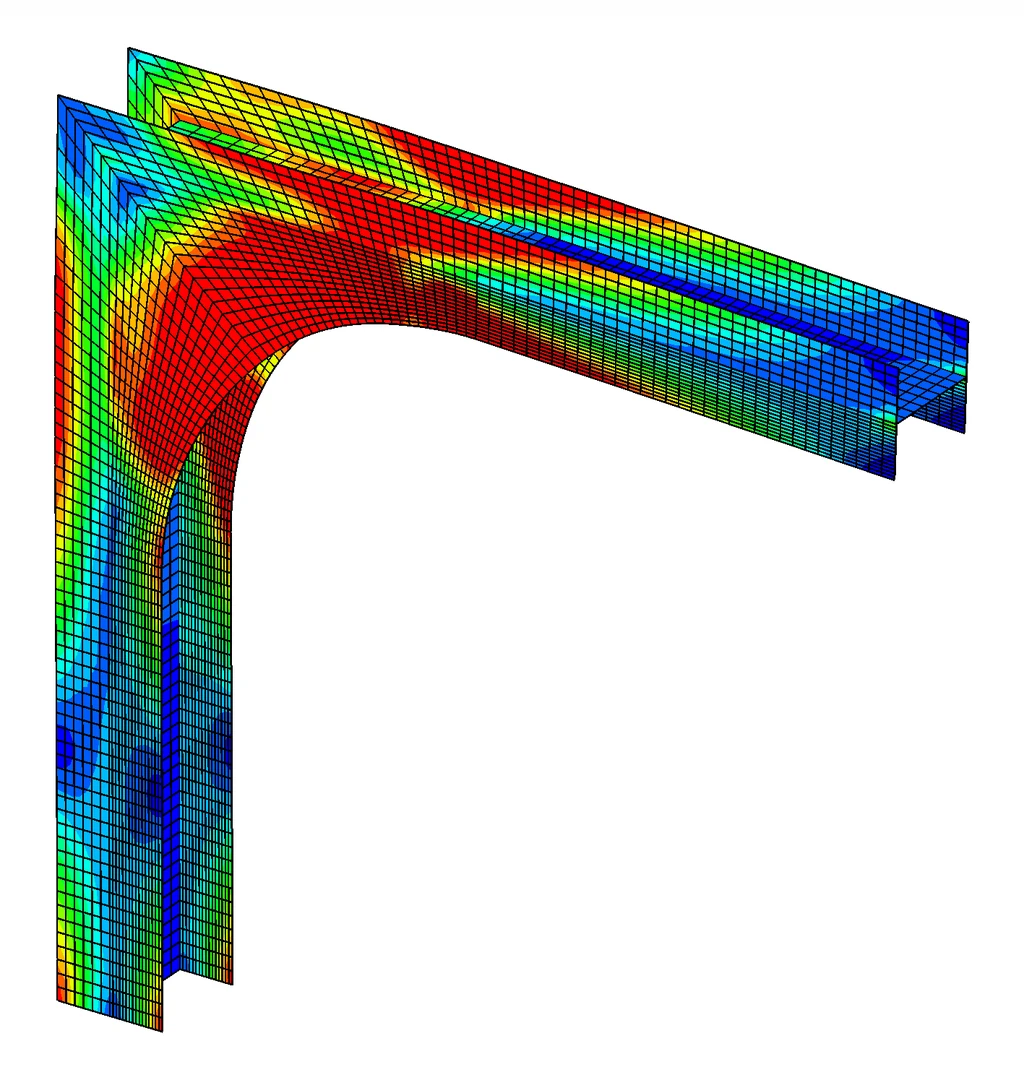
View the DNV buckling model Abaqus von Mises stress contour on the meshed flanges and web of a steel frame corner

What would you automate first?

Engineering teams

Run your next design revision through the same checks.

Start with a model your team already trusts. Turn repeated setup, design variants and result extraction into a workflow your engineers can rerun and review.

  • Build variants from a baseline model or design table.
  • Capture solver warnings and compare outputs against agreed limits.
  • Generate consistent plots and reports for design reviews.
Plan a team workflow

Professors and researchers

Give your lab a study it can rerun.

Start with a benchmark, a paper or a model from your lab. Record the inputs and assumptions so a new researcher can reproduce the setup and review the results.

  • Script mesh sensitivity studies and parametric sweeps.
  • Test user subroutines against a small, well-understood case.
  • Keep scripts, input decks and run records with your figures.
Plan a reproducible study

Bring any CAE software.

Tell us what your team already uses, including in-house scripts or a solver you don’t see listed. We check what each tool can automate and design the handoffs around your environment. You can start with a single step, such as meshing or post-processing.

Ask about my software on WhatsApp
Example with commercial CAE tools

Altair HyperMeshAbaqusResults report

Prepare and check the mesh, submit the analysis, then extract agreed outputs. The same scoping process applies to Ansys Mechanical, Ansys MAPDL and COMSOL Multiphysics, including your available scripting tools and licenses.

Example with open-source tools

CadQueryGmshCalculiX

Generate parametric geometry, mesh it, then build the CalculiX input deck. For structural and earthquake-engineering studies, ask us about scripted OpenSees workflows.

Example combining open-source and commercial tools

CadQueryGmshAbaqus

Automate geometry and meshing with open-source tools, then solve in Abaqus. Check units, element types and named groups at the handoff before running the full model. Where software needs a manual export or review, make that step explicit in the workflow.

Start with one simulation workflow.

Pick a representative job, such as rebuilding a mesh, running a load-case sweep or extracting force–displacement curves. Compare a manual run and an automated run on the same case. Track manual steps, hands-on effort and differences in the outputs you care about.

Plan my first workflow on WhatsApp

Map the job and its inputs.

Identify the geometry, materials, loads, file formats, solver access and expected results. Choose a baseline case and agree which inputs the agent can change.

Connect the CAD, mesh and solver.

Reuse existing scripts or build the handoffs. Check units, element types, mesh sets and boundary-condition mappings on a small case before running variants.

Run the study and record what happened.

Run the agreed cases in your environment and record inputs, solver warnings and failed jobs. Extract consistent result tables, plots or reports.

Compare against your acceptance checks.

Review the result against the baseline, hand calculation or benchmark you selected. Your engineer or research lead signs off before the workflow is reused.

Abaqus solver demo

See the result. Check what produced it.

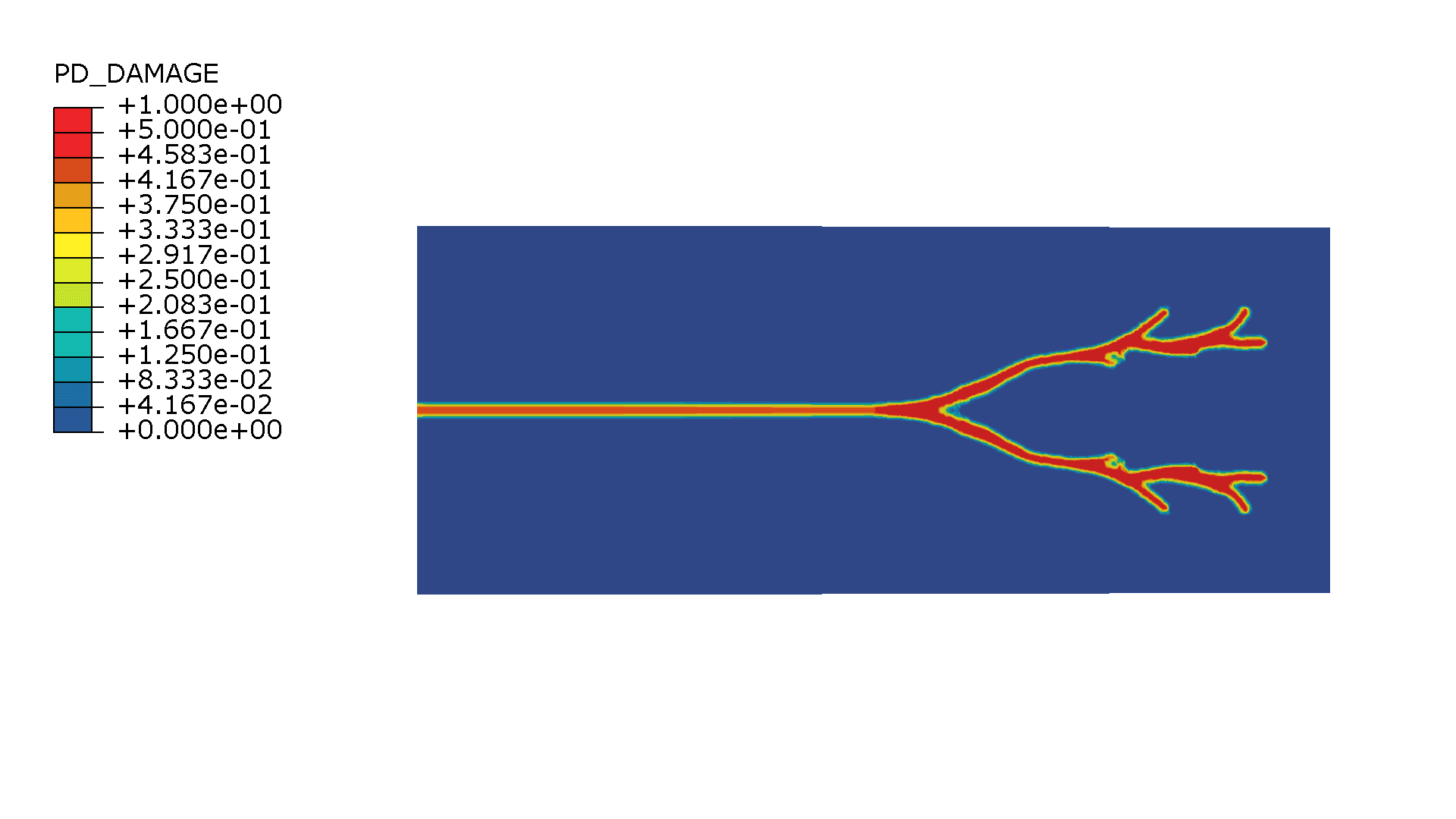
Play the Abaqus animation to see a crack grow and branch in a soda-lime glass plate under sudden tension. The animation pairs the damage contour with the energy balance from the same run.

In this example, one run script handles five published crack-branching scenarios. The glass model shown here uses 1.51 million bonds represented by Abaqus user elements.

For your workflow, we agree on the acceptance checks before automation. They can include mesh sensitivity, force or energy balance, or comparison with a benchmark. An engineer makes the final call.

Explore the Abaqus crack-branching model
Soda-lime glass under 24 MPa tension. Abaqus model based on Ha and Bobaru (2010).
View the original Abaqus result Original Abaqus Viewer output with the default damage contour and legend for crack branching in soda-lime glass

Frequently asked questions

What does an AI FEA agent automate?

It can prepare geometry and meshes, generate solver inputs, run batches, read job logs and extract results. Your team defines the assumptions, review points and criteria for accepting a result.

Can we start with our existing models and scripts?

Yes. An existing input deck, script or baseline model is a good starting point. We use it to agree on what the workflow should repeat and which results it should match.

Can the agent combine commercial and open-source software?

Yes. A typical example is CadQuery and Gmsh for preprocessing with Abaqus for analysis. The exact pipeline depends on the model, file formats, solver access and checks at each handoff.

Can you work with COMSOL Multiphysics or OpenSees?

Yes. Tell us which steps you want to automate. We’ll confirm the scripting options, modules or licenses your workflow needs and what can run in your environment.

What if our solver or CAD software isn’t listed?

Bring it to us. We check available APIs, scripting or batch interfaces, and the formats it can import and export. Where direct control is limited, we can scope file handoffs or a manual review step around the rest of the automation.

Can the agent help with solver errors and convergence?

It can collect messages and identify where a run failed, then organize the evidence for review. Changes to contact, time stepping, materials or other modelling assumptions can be held for engineering approval before a rerun.

Can we run the workflow with our own licenses and compute?

We can design around your existing workstation, solver licenses or approved compute environment. During scoping we confirm which steps can run in batch, which licenses are required and how outputs are stored.

How do we start if our models are confidential?

Start with a short description of the task, software and required output. We can discuss a representative model, a simplified case or an approved way to share files after the first message.

What can our team retain from a pilot?

We agree the handover before work starts. It can include scripts, solver input decks, run logs, result templates and a checklist showing how to rerun the workflow and review its output.

What should I include in my first WhatsApp message?

Share your role, which tools you use and one task you want to automate. A short description is enough to start. You can discuss how to share any model files later.

What’s the first task you’d hand over?

Tell us your role, which tools you use and what you want to automate. Pick a WhatsApp message and edit it before you send.

Want to receive push notifications for all major on-site activities?

✕