ANSYS Fluent is a powerful computational fluid dynamics (CFD) tool, widely adopted across industries like aerospace, automotive, biomechanics, and oil & gas for simulating complex fluid flows, heat transfer, and chemical reactions. From designing efficient turbines to analyzing structural integrity under fluid loads, Fluent enables engineers to gain critical insights. However, the path to accurate simulation results is often paved with errors.
Encountering errors in Fluent is a universal experience for both novices and seasoned professionals. The key isn’t to avoid errors entirely, but to develop a systematic approach to identify, understand, and resolve them efficiently. This comprehensive guide provides practical, engineer-to-engineer advice for debugging common ANSYS Fluent errors, ensuring your CFD workflows run smoothly.

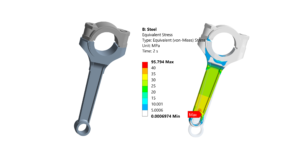
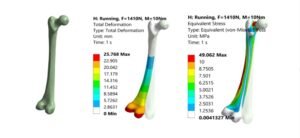
Image: CFD simulation results. Source: Wikimedia Commons.
Understanding Fluent Error Messages
The first step in debugging is to accurately interpret the information Fluent provides. Don’t just close the error window; read it carefully.
Decoding the Console Output
The Fluent console is your primary communication channel. Pay close attention to:
- Warning vs. Error: Warnings suggest potential issues but may not halt the simulation; errors are critical and stop the solver. Address warnings proactively to prevent future errors.
- Line Numbers: If an error refers to a specific line in a UDF or journal file, this is invaluable.
- Keywords: Look for terms like “Divergence,” “Negative Volume,” “Floating point exception,” “Memory,” or “Licensing.” These often point directly to the problem’s nature.
- Last Iteration/Time Step: Errors often occur after a certain number of iterations or at a specific time step in transient simulations. This helps narrow down where instability might be developing.
Log Files: Your Best Friend
Fluent generates various log files (e.g., solution progress logs, UDF compilation logs). These provide a detailed history of the solver’s operations, convergence behavior, and any issues encountered. Always save and review these files, especially when a simulation crashes without a clear console message.
Common ANSYS Fluent Error Categories and Solutions
Most Fluent errors fall into predictable categories. Understanding these helps you quickly pinpoint the root cause.
Meshing Related Errors
A high-quality mesh is fundamental to accurate and stable CFD simulations. Many errors originate here.
Negative Volume/Cell Quality Issues
Fluent often crashes or struggles to initialize if the mesh contains negative volumes or cells with extremely poor quality (high skewness, low orthogonal quality, high aspect ratio).
- Solution:
- Check Mesh Quality: Go to
Domain > Mesh > Checkin Fluent or use the mesh quality tools in ANSYS Meshing, SpaceClaim, or ICEM CFD. - Refine or Rebuild: Identify poor quality regions. Local refinement, smoothing, or rebuilding parts of the mesh (especially near complex geometries or interfaces) is often necessary. Ensure correct mesh sizing functions are applied.
- Use Robust Meshers: Consider using polyhedral or mosaic meshes for complex geometries, as they often offer better quality and faster convergence than purely tetrahedral meshes.
- Check Mesh Quality: Go to
Disconnected Zones/Faces
If parts of your domain are not properly connected (e.g., fluid zone to an inlet, or a fluid zone to a solid zone across an interface), Fluent won’t be able to establish proper communication between cells.
- Solution:
- Check Connectivity: Use the
Mesh > Checkfunction to identify disconnected zones. - Merge Nodes/Faces: In your meshing software (e.g., ANSYS Meshing), use tools to merge coincident nodes/faces or create conformal meshes. For non-conformal interfaces, ensure proper mesh interface boundaries are defined in Fluent.
- Check Connectivity: Use the
Mesh Interface Problems
When using non-conformal meshes or sliding mesh interfaces (for rotating machinery), incorrect setup can lead to errors.
- Solution:
- Overlap/Gap: Ensure a sufficient overlap for interfaces and no unintended gaps.
- Type Consistency: Verify that the correct interface type (e.g., ‘wall’ on one side, ‘fluid’ on the other, or ‘interface’ for internal boundaries) is assigned.
- Mesh Motion: For rotating interfaces, confirm the rotational axis and speed are correctly defined.
| Common Mesh Error Type | Typical Fluent Message Keywords | Initial Troubleshooting Step |
|---|---|---|
| Negative Volume | “Negative cell volume detected” | Check mesh quality metrics (skewness, orthogonal quality). Identify problematic cells. |
| High Skewness | “Divergence detected in AMG solver” (often after mesh quality warning) | Refine or smooth mesh in high-gradient/curvature regions. |
| Disconnected Mesh | “Floating point exception” (often at initialization), “pressure-velocity coupling fails” | Check mesh connectivity in pre-processor or Fluent’s Mesh Check. Ensure consistent naming. |
| Mesh Interface Mismatch | “Interface creation failed,” “zero face area on interface” | Verify interface boundary types, ensure sufficient overlap, and correct zone assignments. |
Setup and Boundary Condition Errors
Even with a perfect mesh, incorrect simulation setup can lead to immediate crashes or unphysical results.
Inconsistent Units
Mixing unit systems without proper conversion can lead to huge discrepancies in physical values.
- Solution:
- Standardize: Choose a consistent unit system (e.g., SI) and stick to it throughout your setup.
- Fluent Units Panel: Use the
Unitspanel in Fluent to verify and change units for various quantities.
Incorrect Boundary Conditions (BCs)
Assigning the wrong BC type or value is a common pitfall. For instance, defining an inlet as an outlet or specifying unrealistic velocities/pressures.
- Solution:
- Review BCs: Carefully re-check each boundary zone and its assigned condition. Visualize BCs in Fluent.
- Physical Plausibility: Ensure values are physically realistic for your flow regime. For example, high Reynolds number flows often require appropriate turbulence models at inlets.
- Mass Flow Conservation: For inlets and outlets, ensure the total mass flow rates are balanced or make physical sense for your problem (e.g., if there’s an internal source/sink).
Material Property Mismatch
Incorrectly defined or missing material properties (density, viscosity, thermal conductivity, specific heat) can cause divergence or unphysical behavior.
- Solution:
- Verify Data: Double-check material properties against reliable sources for the operating conditions.
- Temperature Dependence: If properties are temperature-dependent, ensure the correct functions or polynomials are assigned.
Missing Wall Boundaries
Defining an interior fluid boundary as a ‘wall’ when it should be a ‘fluid-fluid interface’ or vice-versa can create issues. Unassigned faces or external faces not designated as a boundary also cause problems.
- Solution:
- Zone Review: Use the
Boundary Conditionspanel to cycle through all zones and confirm their type and properties. - Mesh Visibility: Use Fluent’s graphics tools to visualize each boundary face set.
- Zone Review: Use the
Solver Convergence Issues
A simulation is only as good as its convergence. Divergence or poor convergence indicates a fundamental problem.
Divergence During Initialization
If the solver diverges immediately during initialization, it often points to severe mesh problems or grossly incorrect BCs/settings.
- Solution:
- Check Mesh: Re-verify mesh quality rigorously.
- Relax BCs: Sometimes, starting with simpler BCs or a lower flow rate and gradually increasing it can help.
- Solution Methods: Try more robust (but slower) pressure-velocity coupling schemes (e.g., SIMPLEC or coupled algorithm) and higher-order spatial discretization if stable.
Fluctuating Residuals
Residuals that oscillate or remain high without dropping indicate a lack of convergence or inherent unsteadiness in the flow.
- Solution:
- Under-Relaxation Factors (URFs): Gently reduce URFs for momentum, pressure, and energy. Don’t go too low, as it increases run time.
- Time Step Size (Transient): For transient simulations, ensure your time step is small enough to capture the physics (e.g., based on CFL number).
- Turbulence Model: Check if your chosen turbulence model is appropriate for the flow regime. Some models are more stable than others.
- Physical Instability: The flow might genuinely be unsteady. Consider running a transient simulation if you’re trying to force a steady-state solution on an inherently transient problem.
High Skewness/Aspect Ratio Causing Instability
As mentioned, poor mesh quality directly impacts solver stability.
- Solution:
- Mesh Refinement/Remeshing: Prioritize fixing high-skewness and high-aspect-ratio cells.
- Mesh Adaptation: Consider using adaptive meshing during solution, especially for regions with steep gradients.
Poor Under-Relaxation Factors
Aggressive URFs can lead to divergence, while overly conservative ones slow convergence.
- Solution:
- Default Values: Start with Fluent’s default URFs.
- Incremental Adjustment: If diverging, incrementally decrease URFs (e.g., momentum from 0.7 to 0.5). If converging slowly, you might slightly increase them.
Memory and Licensing Errors
These are often infrastructure-related but equally critical.
Out of Memory (OOM) Errors
Simulations with very large meshes or complex models require significant RAM and disk space.
- Solution:
- Mesh Reduction: Can you simplify the geometry or coarsen the mesh in less critical regions?
- Memory Optimization: Close other applications. For parallel runs, check if partitioning is optimal.
- HPC Resources: For large-scale simulations (common in structural integrity and FFS Level 3 analyses), consider using high-performance computing (HPC) clusters. EngineeringDownloads offers affordable HPC rental to run your models more efficiently.
License Server Connection Problems
Can’t start Fluent or solve? Check your licensing.
- Solution:
- License Server Status: Verify the license server is running and accessible (ping it).
- Firewall: Ensure no firewall is blocking the license server port.
- License File/Environment Variable: Confirm your `ANSYSLMD_LICENSE_FILE` environment variable is correctly pointing to your license server or file.
Practical Workflow for Debugging
A systematic approach saves time and frustration.
Step 1: Identify the Error Source
- Read the Message: Start with the console output.
- Check Logs: Dive into detailed log files for more clues.
- Timing: Did it crash at initialization, during a specific phase (e.g., turbulence model activation), or after many iterations?
Step 2: Isolate the Problem
- Simplify the Model: Can you run a simpler version of the geometry or a 2D model?
- Basic Setup: Try running with only basic physics (e.g., laminar flow without turbulence, incompressible). If this works, incrementally add complexity.
- One Change at a Time: When trying fixes, change only one parameter or setting at a time to understand its impact.
Step 3: Systematic Troubleshooting
- Mesh First: Always start with mesh quality. Most problems trace back here.
- BCs Next: Verify all boundary conditions are physically sound and correctly applied.
- Solver Settings: Only then adjust solver settings like URFs, discretization schemes, or turbulence models.
Step 4: Incrementally Test Changes
- Save Versions: Save your project at various stages, especially before making significant changes.
- Short Runs: After a change, perform a short run (e.g., 10-50 iterations) to see if the issue persists before committing to a long simulation.
Verification & Sanity Checks in Fluent
Beyond debugging errors, continuously verify your setup for physical plausibility and accuracy.
Mesh Quality Assessment
- Orthogonal Quality & Skewness: Aim for minimum orthogonal quality > 0.1 and maximum skewness < 0.9.
- Aspect Ratio: Keep aspect ratio reasonable, especially in boundary layers.
- Wall y+ Check: After initialization or a few iterations, check the wall y+ values to ensure your near-wall mesh resolution is appropriate for your turbulence model.
Boundary Condition Review
- Visual Confirmation: Display each boundary zone and confirm its type and assigned values.
- Mass/Energy Balance: For closed systems, ensure mass and energy are conserved. For open systems, check mass flow rates at inlets/outlets.
Solution Convergence Criteria
- Residuals: Monitor residuals. For most engineering applications, values below 1e-4 for continuity and momentum, and 1e-6 for energy and species are good targets.
- Global Quantities: Track integral quantities like mass flow rate at outlet, drag/lift coefficients, or average temperature. These should stabilize before declaring convergence.
- Iterative Oscillations: If residuals oscillate around a higher value, consider if the flow is inherently unsteady.
Physical Plausibility Checks
- Velocity Vectors/Contours: Are flow patterns physically reasonable? Do velocities make sense at inlets/outlets?
- Pressure Distribution: Are pressure drops/rises consistent with expectations?
- Temperature/Species Contours: Do temperature or concentration fields develop as expected?
Sensitivity Analysis
- Mesh Independence: Run the simulation with progressively finer meshes to ensure your results are independent of mesh resolution. This is crucial for structural integrity and FFS assessments where accuracy is paramount.
- Parameter Sensitivity: Vary key input parameters (e.g., inlet velocity, material properties) within their expected range to understand their impact on the results.
Advanced Debugging Strategies
User-Defined Functions (UDFs) Troubleshooting
UDFs extend Fluent’s capabilities but can introduce new errors.
- Compilation Errors: Check the UDF compilation log. Common issues include syntax errors, undeclared variables, or incorrect header includes.
- Runtime Errors: If a UDF causes divergence, use
Message("Debugging point X\n")calls within your UDF to track its execution and variable values. - Initialization: Ensure your UDFs initialize variables correctly, especially at the start of a new simulation.
Parallel Processing Challenges
Running Fluent in parallel across multiple cores or nodes can be complex, especially with large meshes or complex UDFs.
- Partitioning: Ensure your mesh partitioning is balanced. Uneven partitioning can lead to idle processors and slowdowns.
- Inter-process Communication: Issues with network latency or firewall settings on an HPC cluster can cause communication errors.
- UDFs and Parallel: Verify UDFs are written to be parallel-safe, especially when accessing global variables or performing I/O.
Journal Files for Reproducibility
Recording a journal file of your setup steps allows you to quickly re-run and debug specific parts of your setup, ensuring consistency and reproducibility.
When to Seek Help
Sometimes, despite your best efforts, an error remains elusive. Don’t hesitate to consult documentation, online forums, or experts. For complex CFD projects, advanced training, or requiring significant HPC resources, EngineeringDownloads offers specialized online/live courses, internship-style training, and project/contract consultancy to help you overcome simulation challenges.
FAQ: Debugging ANSYS Fluent
Further Reading
For more in-depth information, refer to the ANSYS Fluent Official Product Page.
Conclusion
Debugging ANSYS Fluent errors is an essential skill for any CFD engineer. By adopting a methodical approach – starting with a robust mesh, carefully verifying boundary conditions, and systematically analyzing solver behavior – you can significantly reduce troubleshooting time. Remember to leverage Fluent’s diagnostic tools, maintain a practical workflow, and always perform sanity checks to ensure the accuracy and reliability of your simulation results in demanding applications, whether it’s for aerospace structural integrity or oil & gas pipeline flow assurance.