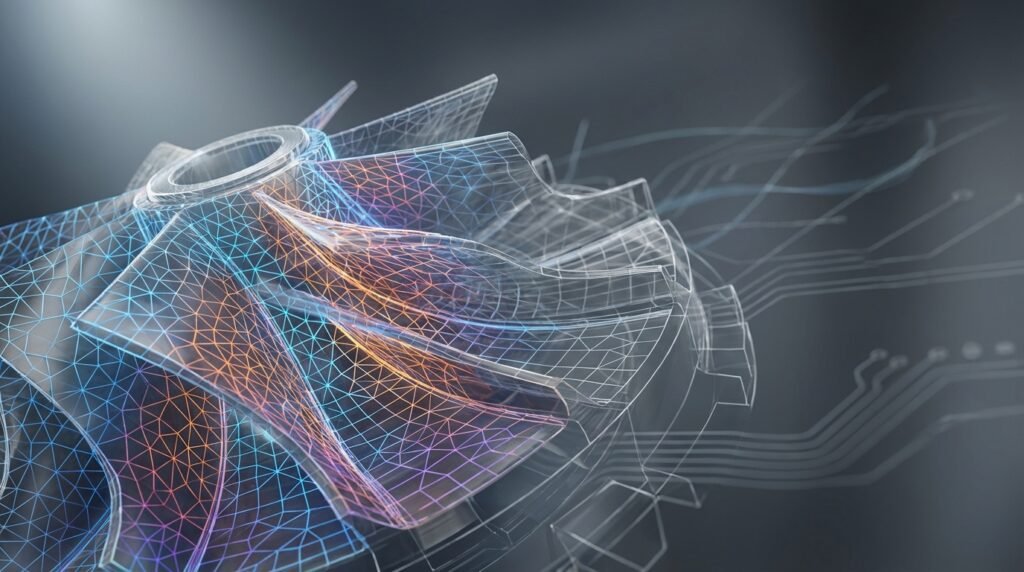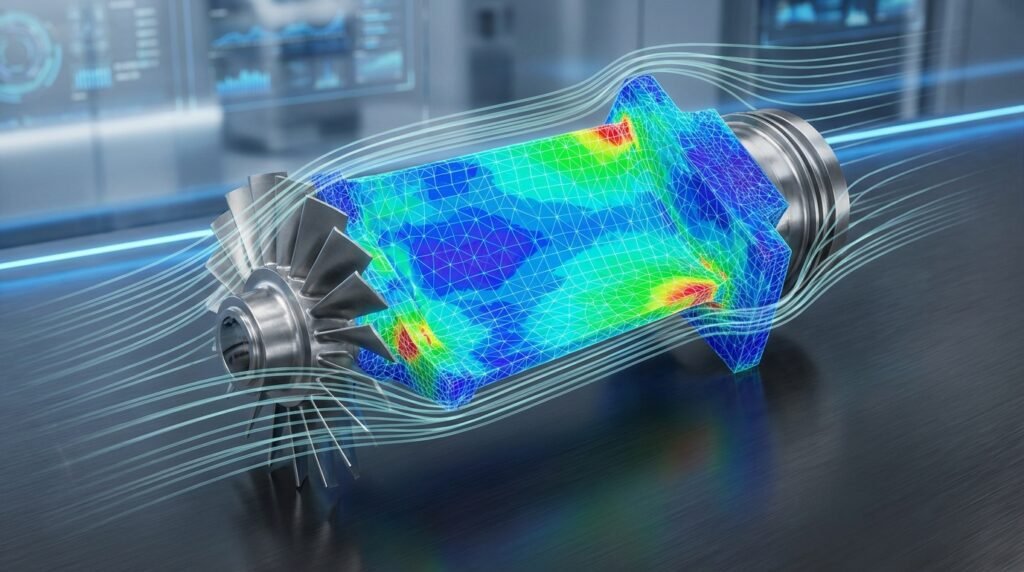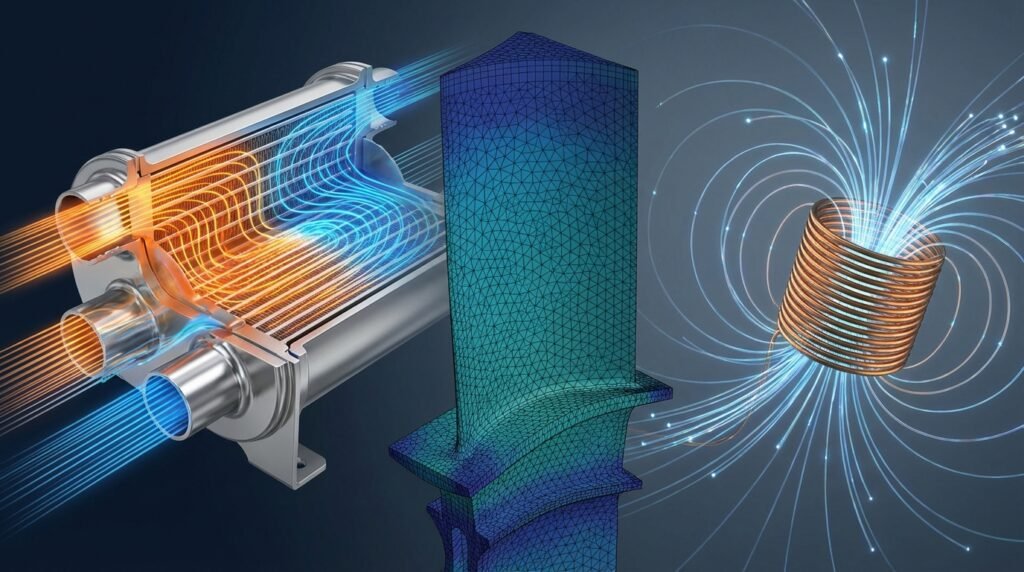
Welcome, fellow engineers! Today, we are diving deep into COMSOL Multiphysics, a powerful simulation platform that has revolutionized how we approach complex engineering problems. If you’ve ever needed to simulate phenomena where different physics interact – like how heat affects structural integrity, or how fluid flow impacts electrical components – then COMSOL is a tool you absolutely need to understand.
Unlike traditional single-physics tools, COMSOL Multiphysics is built from the ground up to handle these interconnected systems, offering an integrated environment for design, simulation, and optimization across various engineering disciplines.

Image Credit: COMSOL Inc. via Wikimedia Commons
What is COMSOL Multiphysics and Why is it Essential?
COMSOL Multiphysics is a simulation software environment that allows engineers and scientists to model and simulate physics-based problems. What makes it stand out is its ‘multiphysics’ capability – the ability to couple and simulate multiple physical phenomena simultaneously. Think about a microfluidic device where fluid dynamics, heat transfer, and electric fields all play a crucial role, or a solid rocket motor where combustion, structural mechanics, and heat transfer are intertwined.
The Power of Multiphysics Simulation
In the real world, engineering challenges rarely involve just one type of physics. For instance:
- Thermal-Structural Interaction: How does temperature expansion affect stress distribution in a bridge or an engine component?
- Fluid-Structure Interaction (FSI): How does blood flow affect the walls of an artery (biomechanics), or how do wind loads deform an airplane wing (aerospace)?
- Electro-Thermal Effects: How does resistive heating impact the performance and lifespan of an electronic device?
- Chemically Reacting Flow: Modeling reactors for chemical processing or combustion engines.
COMSOL provides a unified platform to set up, solve, and analyze these complex interactions, offering unparalleled insights that single-physics tools might miss. This leads to more robust designs, faster innovation, and reduced prototyping costs.
Key Capabilities and Core Modules
The COMSOL Multiphysics platform is highly modular, allowing you to tailor its capabilities to your specific needs by adding various application-specific modules. Let’s look at some core areas:
Comprehensive Physics Interfaces
- Structural Mechanics Module: For finite element analysis (FEA) covering linear and nonlinear elasticity, plasticity, fatigue analysis, contact mechanics, and even advanced topics like fracture mechanics (relevant for FFS Level 3 assessments). It can handle static, dynamic, and eigenvalue analyses.
- CFD Module: Computational Fluid Dynamics (CFD) for simulating fluid flow – laminar, turbulent, single-phase, multiphase, compressible, incompressible. Think of applications in oil & gas pipelines, aerospace aerodynamics, or heat exchangers.
- Heat Transfer Module: Conduction, convection, radiation, phase change, and porous media heat transfer. Critical for thermal management in electronics, engines, and industrial processes.
- AC/DC Module & RF Module: For electromagnetics, modeling electric and magnetic fields, currents, and waves. Essential for electrical machines, antennas, and biomedical devices.
- Acoustics Module: Simulating sound propagation in various media, for noise reduction, transducer design, and architectural acoustics.
- Chemical Reaction Engineering Module: For simulating chemical species transport, reactions, and thermodynamics in reactors and process equipment.
- Biomechanics Module: Specifically tailored for biological systems, integrating structural mechanics and fluid dynamics for medical device design, tissue mechanics, and physiological flows.
CAD-CAE Workflows and Automation
- CAD Import Module: Seamlessly import geometries from popular CAD software like CATIA, SolidWorks, Autodesk Inventor, and PTC Creo.
- LiveLink for CAD Products: Offers synchronization between COMSOL and CAD software, allowing design changes in CAD to be immediately reflected in the COMSOL model without re-importing. This is a game-changer for iterative design processes.
- Application Builder: A unique feature allowing engineers to build standalone simulation apps from their COMSOL models. These apps can have custom user interfaces, exposing only relevant parameters, making complex simulations accessible to non-specialists or broader teams.
- Programming & Scripting: COMSOL’s LiveLink for MATLAB and its Java API enable powerful automation through scripting (Python and other languages can interface via the Java API), parametric studies, optimization, and post-processing, much like what you might do with Abaqus or ANSYS.
Practical Workflow in COMSOL Multiphysics
Getting started with COMSOL involves a systematic approach, similar to other CAE tools but with its own nuances. Here’s a typical workflow:
1. Geometry Creation or Import
- Direct Modeling: COMSOL has built-in CAD tools for creating 2D and 3D geometries, suitable for simpler models or modifying imported ones.
- Import: For complex designs, import from your preferred CAD software (e.g., SolidWorks, Inventor). Use LiveLink for dynamic updates.
- Simplification: Often, imported CAD geometries are too detailed for simulation. Simplify features like fillets, small holes, or tiny gaps to reduce mesh complexity and computation time.
2. Material Properties Definition
Assign appropriate material properties (e.g., Young’s modulus, Poisson’s ratio, density, thermal conductivity, viscosity) to different parts of your geometry. COMSOL includes extensive material libraries, but you’ll frequently need to define custom materials or import property data.
3. Physics Setup
- Add Physics Interfaces: Select the relevant physics interfaces (e.g., Solid Mechanics, Laminar Flow, Heat Transfer in Solids) from the Model Wizard or directly in the Model Builder.
- Define Boundary Conditions (BCs) and Loads: This is critical. Carefully apply constraints (e.g., fixed boundaries, roller supports), loads (e.g., pressure, force, gravity, temperature), and initial conditions. Ensure these reflect the real-world scenario accurately.
- Coupling: If you’re doing a multiphysics analysis, COMSOL automatically creates ‘Multiphysics Couplings’ nodes (e.g., Thermal Expansion, Fluid-Structure Interaction) which connect the different physics interfaces. Configure these as needed.
4. Meshing
The mesh divides your geometry into discrete elements for numerical solution. COMSOL offers various meshing techniques:
- Physics-Controlled Mesh: Often a good starting point, COMSOL suggests a mesh based on the physics interfaces you’ve selected.
- User-Controlled Mesh: For finer control, you can define mesh sequences, element types (tetrahedral, hexahedral, prismatic), and sizes manually. This is crucial for capturing thin regions, boundary layers in CFD, or stress concentrations in FEA.
- Adaptive Meshing: Allows the software to refine the mesh automatically in areas where the solution changes rapidly, improving accuracy efficiently.
5. Study Setup and Solving
- Study Types: Choose the appropriate study type: stationary (steady-state), time-dependent (transient), eigenvalue (natural frequencies), or parametric (varying parameters).
- Solver Settings: COMSOL offers various solvers (e.g., direct, iterative) and solver configurations. For complex problems, tuning these can significantly impact convergence and computation time.
- Compute: Initiate the simulation. Monitor its progress, especially for convergence indicators.
6. Post-processing and Results Interpretation
- Visualization: Use 2D/3D plots, animations, and tables to visualize your results (e.g., stress contours, velocity profiles, temperature distribution).
- Derived Values: Extract specific numerical data like maximum stress, average temperature, reaction forces, or flow rates.
- Reporting: Generate comprehensive reports directly from COMSOL, including images, tables, and text.
Verification and Sanity Checks in COMSOL
No simulation is complete without rigorous verification and validation. This ensures your results are not just numbers but accurate representations of reality.
Essential Checks:
- Unit Consistency: Always double-check that all your inputs (geometry, material properties, loads) are in consistent units. A common mistake across all simulation software.
- Boundary Condition Realism: Do your BCs accurately represent how the physical system interacts with its surroundings? Are your fixed constraints truly fixed? Are pressures applied correctly?
- Mesh Sensitivity Study: Perform simulations with progressively finer meshes. The results (e.g., maximum stress, deflection) should converge to a stable value. If they don’t, your mesh might be too coarse or incorrectly refined in critical areas.
- Convergence Criteria: For iterative solvers, ensure the solution has converged to acceptable tolerances. Non-convergence often points to modeling issues, highly nonlinear behavior, or inadequate solver settings.
- Analytical/Hand Calculation Validation: For simpler sub-problems or limiting cases, compare COMSOL’s results with analytical solutions or simplified hand calculations. For instance, compare deflection of a simply supported beam under a point load.
- Comparison with Experimental Data: The ultimate validation. Compare your simulation results with real-world test data. This builds confidence in your model’s predictive power.
- Sensitivity Analysis: How do uncertainties in input parameters (material properties, loads) affect your output? This helps understand the robustness of your design.
- Energy Conservation: For certain physics (e.g., heat transfer, structural dynamics), check if energy is conserved within reasonable limits, especially in transient simulations.
- Physical Plausibility: Do the results make sense physically? Are deflections in the right direction? Are temperatures within expected ranges? Are flow patterns logical?
COMSOL in Specific Engineering Fields
COMSOL’s versatility makes it valuable across a vast spectrum of engineering disciplines:
Structural Engineering & Integrity (FEA, FFS Level 3)
For structural engineers, COMSOL’s Structural Mechanics Module offers robust FEA capabilities. You can analyze stresses, strains, deflections, and buckling for bridges, buildings, and mechanical components. It’s particularly useful for:
- Fatigue Analysis: Predicting component lifespan under cyclic loading.
- Fracture Mechanics: Evaluating crack propagation and structural integrity, crucial for Fitness-for-Service (FFS) Level 3 assessments in industries like Oil & Gas, where safety and operational continuity are paramount.
- Connection Modeling: Simulating bolted or welded joints, contact interfaces, and their behavior under various loads.
While tools like Abaqus and ANSYS Mechanical are widely used, COMSOL provides a strong alternative, especially when coupled structural-thermal or structural-acoustic analysis is needed.
Fluid Dynamics (CFD) in Oil & Gas and Aerospace
The CFD Module allows engineers to simulate complex fluid flows. In the Oil & Gas sector, this means modeling multiphase flow in pipelines, optimizing pump designs, analyzing flow assurance, and studying dispersion of pollutants. For Aerospace, COMSOL can simulate airflow over airfoils, cabin ventilation, and thermal management of electronic systems in aircraft, complementing tools like ANSYS Fluent/CFX or OpenFOAM.
Biomechanics and Medical Devices
COMSOL excels in biomechanical applications due to its multiphysics nature. Engineers can simulate blood flow through arteries (FSI), analyze stress on bone implants, model drug delivery systems, or design microfluidic diagnostic devices. This often involves coupling fluid dynamics, structural mechanics, and even chemical species transport.
CAD-CAE Integration & Automation with Python/MATLAB
Modern engineering demands seamless integration. COMSOL’s LiveLink products bridge the gap between CAD software and simulation. Furthermore, its API for MATLAB allows you to script complex parameter sweeps, optimization studies, and custom post-processing, similar to how you might automate tasks in MSC Patran/Nastran or ADAMS. Python users can also interact with COMSOL via its Java API, enabling powerful automation scripts for repetitive tasks or integrating COMSOL simulations into larger design optimization frameworks.
Common Challenges and Troubleshooting Tips
Every powerful simulation tool comes with its share of challenges. Here’s how to navigate common COMSOL hurdles:
1. Convergence Issues
- Cause: Often due to highly nonlinear physics, poor mesh quality, incorrect boundary conditions, or unsuitable solver settings.
- Troubleshooting:
- Simplify First: Start with a simpler model (e.g., linear, steady-state) and gradually add complexity.
- Check BCs: Ensure all boundaries are correctly defined and there are no floating parts.
- Initial Conditions: Provide good initial guesses for transient or nonlinear problems.
- Solver Settings: Experiment with different iterative solvers, increase the number of iterations, or try a direct solver if feasible. Adjust damping factors for highly nonlinear problems.
- Mesh Refinement: Ensure critical regions have a sufficiently fine mesh.
2. Meshing Errors
- Cause: Complex geometry, small faces/edges, or conflicting mesh size settings.
- Troubleshooting:
- Geometry Cleanup: Use COMSOL’s geometry repair tools (Defeaturing and Repair) to remove small features or heal gaps.
- Virtual Operations: Combine small faces or edges virtually to simplify the meshing process without altering the underlying geometry.
- Manual Mesh Control: Apply local mesh refinements or specify different mesh sizes for various domains/boundaries.
- Check Geometry Imprints: Ensure that all physics boundaries are properly imprinted on the geometry for meshing.
3. Long Computation Times / Hardware Limitations
- Cause: Very fine meshes, complex physics, large time steps in transient studies, or insufficient RAM/CPU.
- Troubleshooting:
- Model Simplification: Can you use symmetry? Reduce 3D to 2D axisymmetric? Remove non-critical features?
- Optimize Mesh: Use coarser meshes where possible, finer only where critical. Use boundary layers for CFD.
- Solver Choice: Iterative solvers are generally faster and require less memory than direct solvers for large problems.
- Parallel Computing: Utilize all available CPU cores or distribute computations across a cluster if you have access. COMSOL supports shared-memory and distributed-memory parallel processing.
- Memory Management: Monitor RAM usage. If you’re constantly swapping to disk, you need more RAM or a coarser mesh.
Table: Key Considerations for COMSOL Model Setup
| Workflow Step | Key Considerations | Common Mistakes to Avoid |
|---|---|---|
| Geometry | Simplify features, ensure clean topology for meshing. | Overly detailed CAD, unclosed gaps, intersecting parts. |
| Materials | Accurate properties, temperature dependence if applicable. | Incorrect units, missing properties, assuming linear behavior for nonlinear materials. |
| Physics & BCs | Correct physics interfaces, realistic constraints/loads. | Missing loads, over-constraining, wrong boundary type (e.g., fixed instead of free). |
| Meshing | Adequate element density in critical areas, aspect ratio. | Too coarse mesh, bad element quality, not resolving boundary layers. |
| Solvers | Appropriate solver for problem type (direct/iterative). | Using default solvers for highly nonlinear/large problems, ignoring convergence. |
| Post-processing | Verify results, extract relevant data, visualize effectively. | Blindly accepting results, focusing only on maximum values without context. |
Maximizing Your COMSOL Experience
To truly leverage COMSOL’s capabilities, consider these practical tips:
- Start Small: For new physics or complex problems, begin with a simplified 2D model or a small 3D section to understand the behavior before scaling up.
- Documentation is Your Friend: COMSOL’s extensive documentation and application library are invaluable resources. Review similar examples to gain insights.
- Leverage the Application Builder: For repetitive tasks or to empower colleagues, build dedicated simulation apps. This standardizes workflows and reduces errors.
- Community & Support: Engage with the COMSOL user community forums. There’s a wealth of knowledge shared by experienced users.
- Continuous Learning: Simulation software evolves. Keep up-to-date with new versions and features.
At EngineeringDownloads.com, we understand the intricacies of advanced simulation. If you’re looking for pre-built COMSOL project files for common engineering scenarios, custom scripting solutions for automation, or even personalized tutoring to master challenging multiphysics problems, explore our resources. Our online consultancy services can also help you tackle specific project roadblocks and optimize your COMSOL workflows.